
AI photo culling for iPad and iPhone
AI photo culling that runs on your iPad.
Cull is an AI photo culling app for iPad and iPhone. Import a shoot and it scores every frame for sharpness, open eyes and exposure, groups the near-duplicates into moments, and stars the best frame of each burst. It all runs on your device, so nothing is uploaded.
- The first pass is free, with no account
- RAW from Canon, Nikon, Sony, Fujifilm and more
- Picks and ratings go straight into Lightroom or Capture One
iPad and iPhone · iOS 17 or later · works offline
One shoot after the first pass
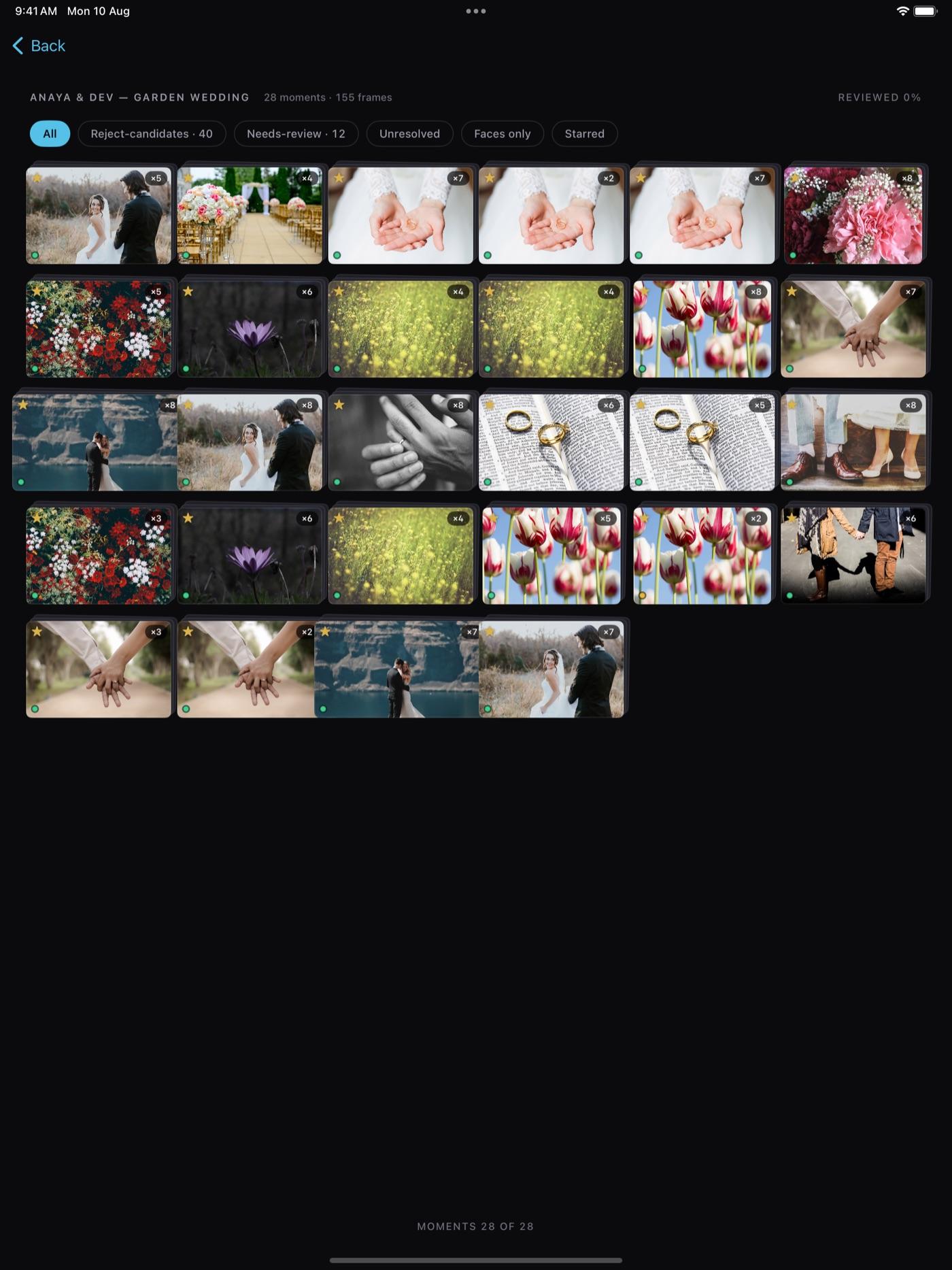
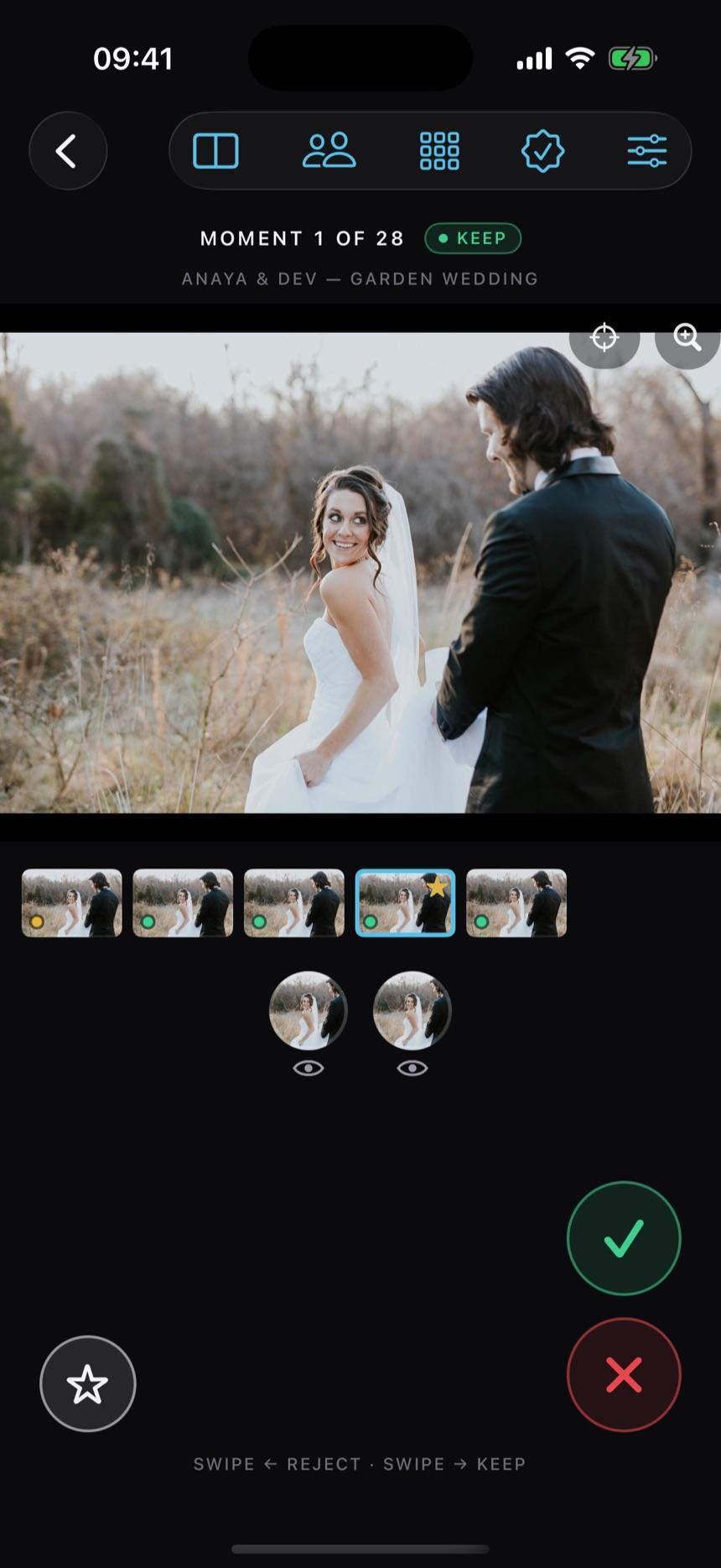
This is the sample wedding in the screenshots: 155 frames, grouped into 28 moments. Each bar is one moment. You only have to look closely at the amber and red ones.
What is photo culling?
Photo culling is the first pass after a shoot: going through every frame and deciding which ones are worth editing. A wedding or an event can produce thousands of frames, and most of the work is the same small judgement repeated - is it sharp, are the eyes open, is it one of six near-identical shots.
AI photo culling hands that repetitive part to software. The software checks each frame for the technical faults that rule a photo out and groups the bursts, so you spend your attention on the frames that could be keepers.
How to cull a shoot with Cull
- 1
Import the shoot
Pick a folder in Files, an SD card through a card reader, or photos from your library. Cull reads the whole card, including the camera's subfolders, and pairs each RAW with its JPEG so a frame is counted once.
- 2
Let the AI do the first pass
Every frame is scored on the device for focus, eyes and exposure. Near-identical shots are grouped into a moment and the strongest frame in each is starred. You can start reviewing before the import finishes.
- 3
Decide, then export
Swipe or tap to keep, reject or star. When you are done, export XMP sidecars for your editor, a folder of JPEGs, a Photos album or a CSV list.
What the AI does, and what stays your call
Cull handles the repetitive checks. The choice between two good frames is still yours.
Scoring
Every frame scored for focus, eyes and exposure
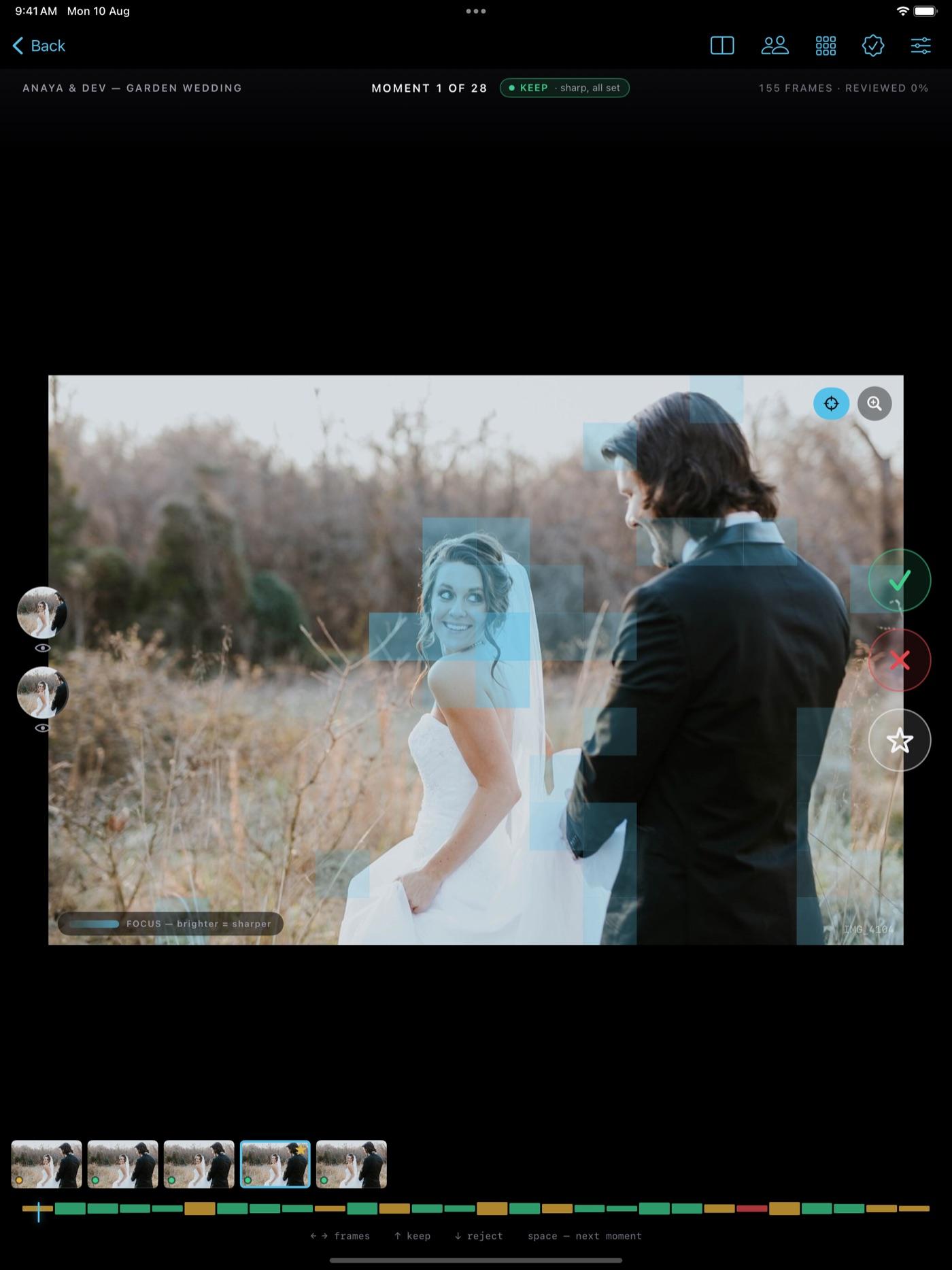
Cull rates each frame on the three things that most often rule a photo out: whether it is sharp, whether everyone's eyes are open, and whether it is badly over or under exposed. Each verdict comes with its reasons, so you can tap the chip and see exactly why a frame was marked keep, review or reject.
- Zoom to 100% on any frame, or on any face, to check focus yourself
- Face chips show each person and whether their eyes were open
- The focus map (Pro) overlays where focus actually landed
Bursts
Near-duplicates grouped, the best of each burst starred
A burst of eight frames is one decision, not eight. Cull groups shots taken together into a moment, ranks them, and puts a star on the strongest one. Grouping profiles for portrait, event, sports and wedding work match how tightly you shoot.
- See the whole shoot as moments instead of single frames
- Filter to reject candidates, frames that need review, or faces only
- Change the AI's pick with one tap if you disagree
Compare (Pro)
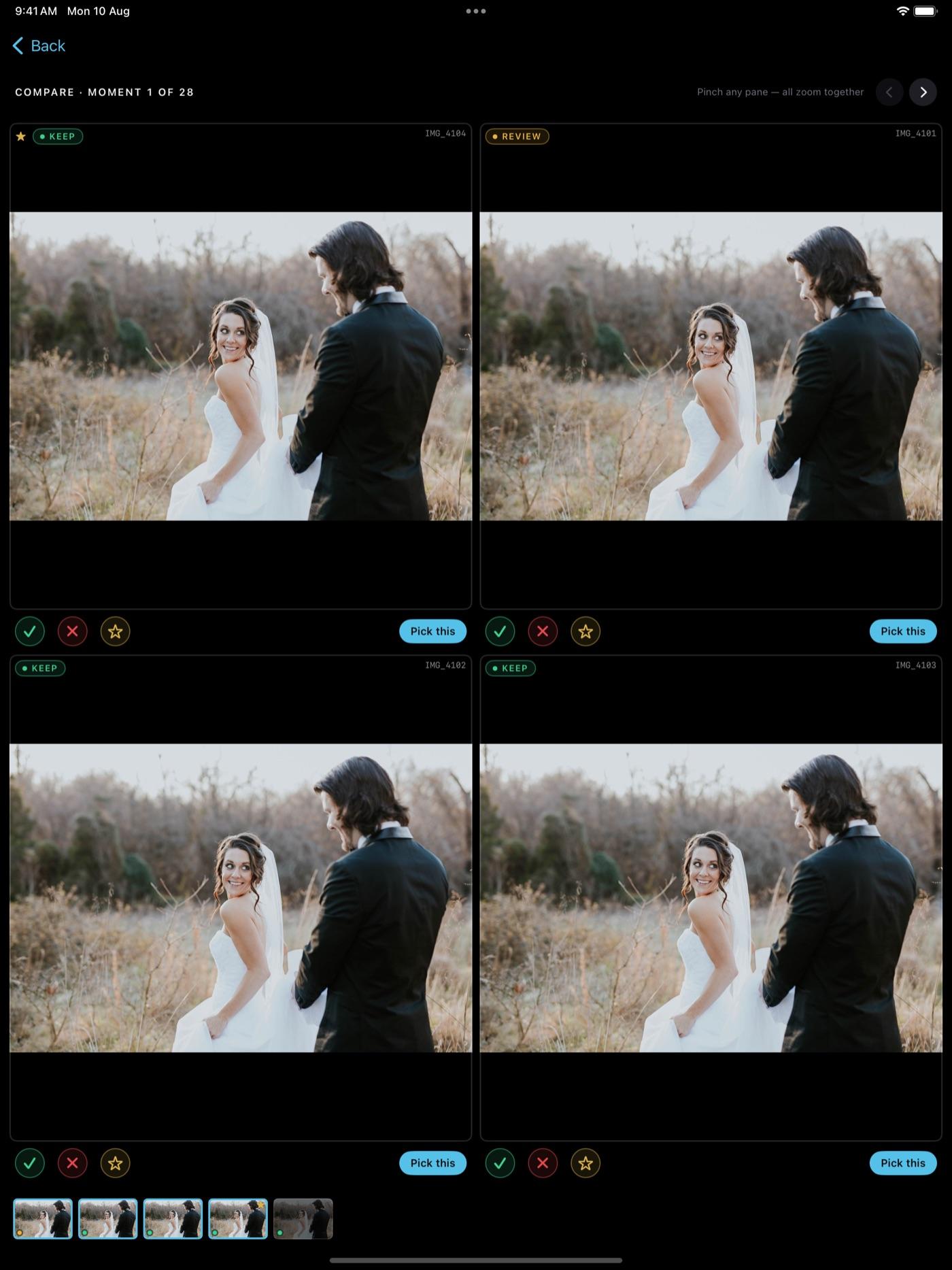
Compare two to four frames side by side
When the choice is close, open the burst in Compare. Two to four frames sit side by side and zoom and pan together, so you are looking at the same eyes in every pane. Tap Pick this and the whole moment is decided.
- Synced zoom and pan across every pane
- Keep, reject or star each frame without leaving the view
- One tap settles the moment and moves you on
Export
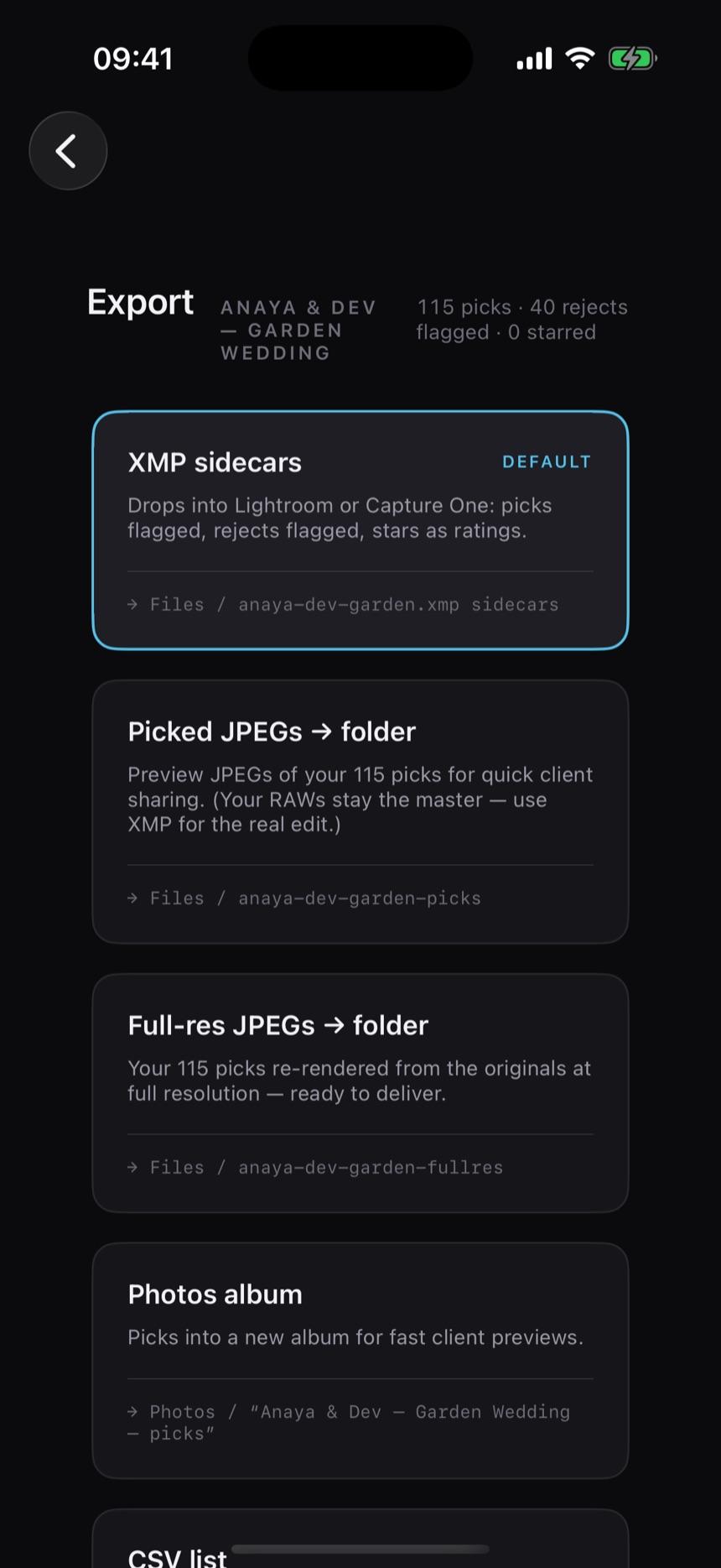
Your picks go straight into Lightroom or Capture One
Cull writes standards-based XMP sidecar files next to your photos. Picks are flagged, rejects are flagged and stars become ratings, so your editor opens the shoot already sorted. If you only need something to send the client tonight, export the picks as JPEGs or as a Photos album.
- XMP sidecars, a JPEG folder, a Photos album or a CSV list
- Sneak peek (Pro): the best 20, 30 or 50 frames, one per moment
- Full-resolution JPEGs and custom XMP label colours with Pro
RAW formats Cull can read
Cull reads RAW files straight from the card, so you can cull on an iPad before the shoot ever reaches a computer. A RAW and its JPEG are paired and counted as one frame.
| Camera | Formats |
|---|---|
| Canon | CR2, CR3 |
| Nikon | NEF, including High Efficiency files |
| Sony | ARW |
| Fujifilm | RAF |
| OM System and Olympus | ORF |
| Panasonic | RW2 |
| Adobe and others | DNG |
| Any camera or phone | JPEG and HEIC |
Free to cull. One purchase for Pro.
The whole first pass is free. Cull Pro adds the tools for close calls and client delivery, and you buy it once. There is no subscription.
The free first pass
No account, no trial clock.
- On-device AI scoring for focus, eyes and exposure
- Bursts grouped into moments, best frame starred
- Fast keep and reject, with zoom to 100%
- The reasons behind every verdict
- Export to XMP sidecars, a JPEG folder, a Photos album or CSV
- Clear rejected photos from your library (recoverable for 30 days)
Cull Pro
One purchase. No subscription.
- Compare mode: 2 to 4 frames with synced zoom and pan
- Focus map: a heat overlay of where focus landed
- People view: the shoot grouped by person, blinks included
- Custom profiles, from conservative to aggressive
- Learns your taste from the picks you overrule
- Sneak peek: the best 20, 30 or 50 frames for the client
- Pro export pack: full-resolution JPEGs and custom XMP labels
The App Store shows the Pro price in your own currency.
Built for wedding, event, sports and portrait shoots
Weddings
Thousands of frames and a couple waiting for a preview. Group the day into moments, check that everyone has a frame with their eyes open, and send a sneak peek the next morning.
Events
Candid coverage means a lot of half-blinks and motion blur. Cull flags them so the first pass is a quick confirmation instead of a search.
Sports
Long bursts at high frame rates. The sports grouping profile keeps a sequence together and stars the sharpest frame in it.
Portraits
Many frames of the same pose. Compare the close ones side by side at 100% and pick on expression.
Your clients' photos never leave your device
- Nothing is uploaded
- Scoring, grouping and reviewing all happen on your iPad or iPhone. There are no servers to send a client's photos to.
- It works in airplane mode
- Cull needs no connection, so you can cull on the flight home or at a venue with no signal.
- No account
- There is nothing to sign up for. Open the app and import a shoot.
- Your originals are never changed
- Keep and reject are saved as flags. Cull does not edit or delete your original files.
What Cull does not do
Better to know these before you download than after.
It is a first pass, not an editor
Cull sorts a shoot. It does not adjust colour, crop or retouch - that still happens in your editor.
It judges technique, not the moment
The AI can tell that a frame is soft or that someone blinked. It cannot tell which frame the couple will love. Every verdict is a suggestion you can overrule.
Some RAW files are scored from their preview
Nikon High Efficiency NEF files cannot be decoded by iOS, so Cull scores them from the full-resolution JPEG preview stored inside each file.
The app is in English
Cull is currently available in English only.
Questions about AI photo culling
What is the best way to cull photos on an iPad?
Import the shoot from an SD card or from Files, let an AI culling app do the first pass, then review the results by moment instead of frame by frame. Cull does this on the iPad itself: it scores every frame for focus, eyes and exposure, groups bursts and stars the best frame, and exports your picks as XMP sidecars for your editor.
Does Cull work on iPhone as well as iPad?
Yes. Cull runs on iPhone and iPad with iOS 17 or later. The iPad gives you more room for compare mode and the moments grid, and the iPhone app has the same scoring, review and export.
Does Cull upload my photos?
No. All scoring, grouping and reviewing happens on your device. Cull has no servers and no account, and it works fully in airplane mode.
Which RAW formats does Cull support?
Canon CR2 and CR3, Nikon NEF, Sony ARW, Fujifilm RAF, OM System and Olympus ORF, Panasonic RW2 and DNG, as well as JPEG and HEIC. RAW and JPEG pairs are treated as one frame.
How do I get my picks into Lightroom or Capture One?
Export XMP sidecars. Cull writes a standards-based XMP file next to each photo with picks flagged, rejects flagged and stars as ratings. Lightroom and Capture One read those files when you import the folder.
Is Cull free?
The first pass is free: AI scoring, burst grouping, keep and reject, and export. Cull Pro adds compare mode, the focus map, people view, custom profiles, sneak peek and the pro export pack. Pro is a single one-time purchase with no subscription.
Will Cull delete or change my original photos?
No. Keep and reject are saved as flags and your original files are never modified. If you choose Clear rejects from Photos, the rejected photos are moved to Recently Deleted, where they can be recovered for 30 days.
How does Cull choose the best photo in a burst?
It groups frames taken close together into a moment, then ranks them by sharpness, whether eyes are open and exposure. The top frame gets a star. You can change the pick with one tap, and with Pro the app learns from the picks you overrule.
Can I cull straight from an SD card?
Yes. Connect a card reader to your iPad or iPhone, choose the card in the import screen, and Cull reads the photos from the camera's folders.
Does Cull need an internet connection?
No. The AI runs on the device, so Cull works with no connection at all.
Something else? See Cull support or email hello@ashvara.io.
Do the first pass on your next shoot in minutes.
Free to download. No account, nothing uploaded.
More photo and video apps from Ashvara
Cull is designed and built by Ashvara. See all our apps or how we approach iOS app development.